Responsive Design
 User Experience
 Ecommerce Websites
 Hosting
 Creative Consultancy
 Identity & Logo Design
 Brand Strategy
 Print Design
 Organic SEO
 Content marketing
 Email Marketing
 Social Media
 CMS Development
 Third Party Systems
 App Development
Mac Mail Email Setup
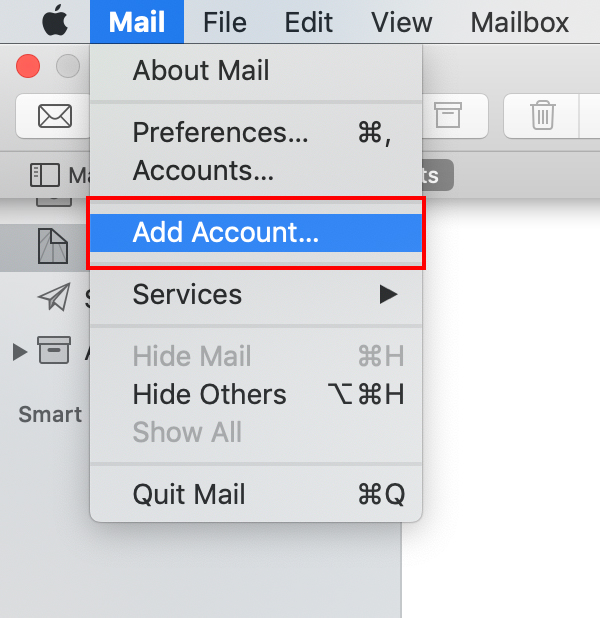
Step 1: Add Account
Launch Mac Mail, click on Mail and then select Add Account.
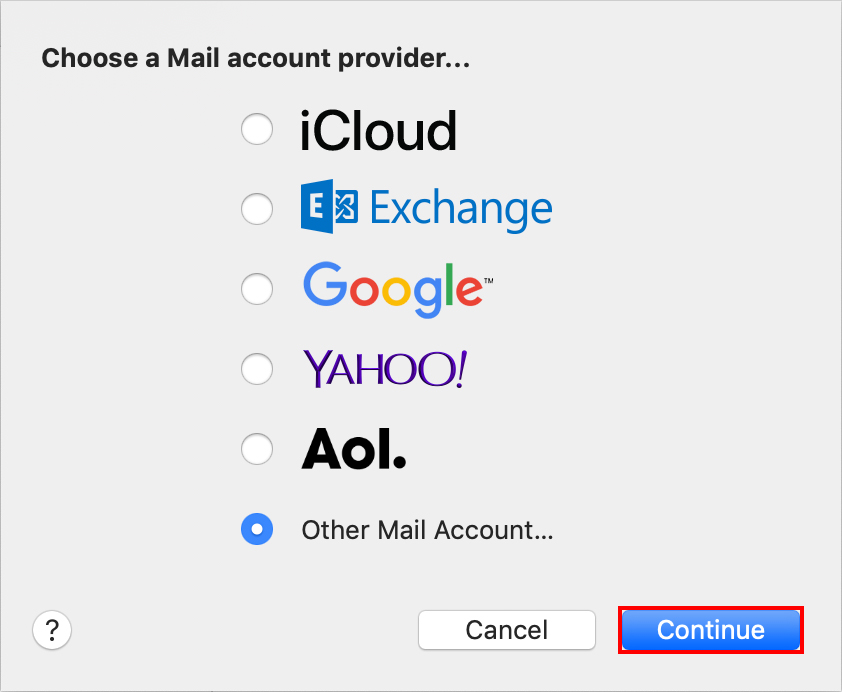
Step 2: Select Account Type
Choose Add Other Mail Account and click Continue.
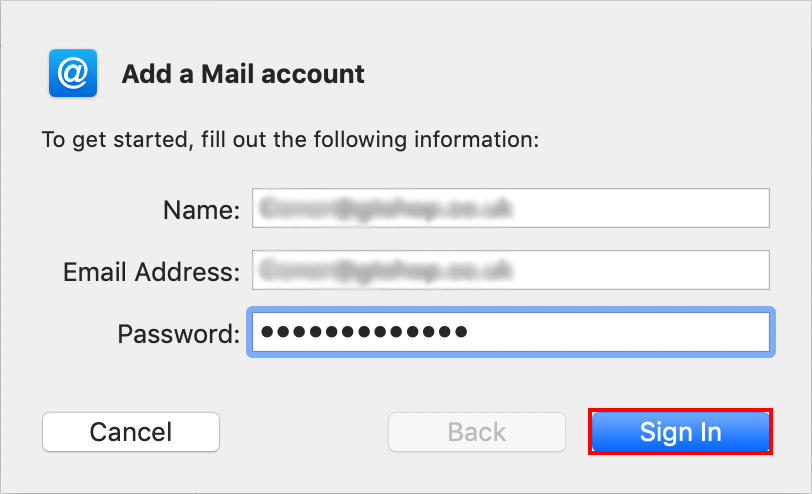
Step 3: Enter Account Information
Enter the following information:
- Full Name: This is the name that will appear on all outgoing mail from this account.
- Email Address: The full email address of your account.
- Password: The password of your email account.
Then click Sign In.
Step 4: Manually Configure Account
The system will prompt you that manual account configuration is required. Click Next.
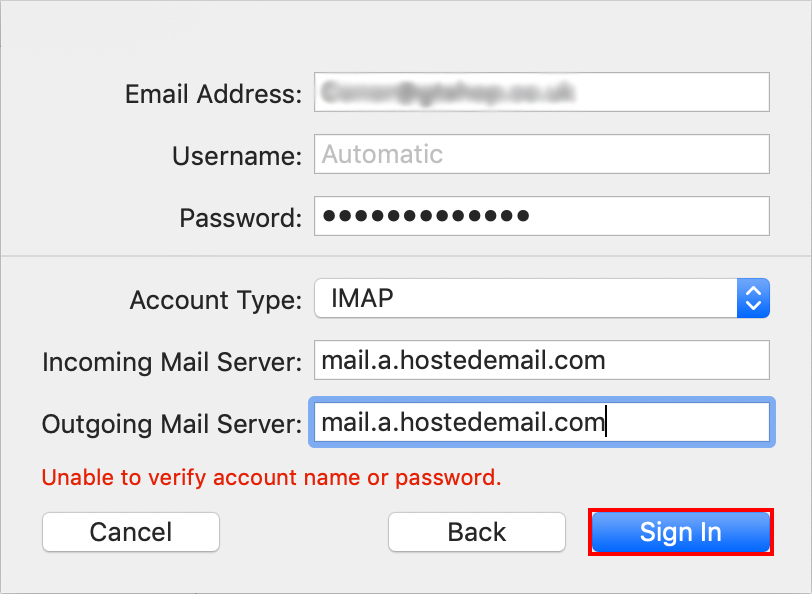
Step 5: Enter Mail Server Information
Enter the following information:
Account Type:
We recommend using IMAP, to ensure that your mail is consistent and accessible across all the devices you use to read emails.
- User Name: Your full email address.
- Password: Your email account password.
- Account Type: IMAP
- Incoming Mail Server: mail.a.hostedemail.com
- Outgoing Mail Server: mail.a.hostedemail.com
Click Sign In.
Please note, our email hosting packages limit each email address to 5GB of server storage. If you exceed this limit, you’ll need to either clean-up your email (by deleting old or unused communications), or request additional storage space by contacting us (additional costs will apply).